












How to Open 443 Port and Check If It Is Enabled or Not
 (42 votes, average: 5.00 out of 5)
 Loading...
Cybersecurity extends beyond preventing malware and protecting your code. Learn how to open the 443 port to beef up your website and improve your organization’s overall security posture
Port 443 serves as a digital guardian angel, keeping you and your customers safe when browsing the internet. Among all the 65,535 ports that direct communication traffic, it’s the only channel that handles the hypertext transfer protocol secure (HTTPS) traffic. Yup, this is what makes the “https://” (and, in some browsers, the security padlock icon) appear in site visitors’ web address bars.
If you have a website protected by a secure socket layer/transport layer security (SSL/TLS) certificate, for example, all data exchanged between the client and the server goes through an encrypted communication channel and port 443. When a server uses an organization validation SSL/TLS certificate as a minimum, the server’s identity is verified by the connecting party, so the site visitor can feel confident that they are connecting to your legitimate company.
Don't make the same mistakes
Yahoo, Equifax, Home Depot,
LinkedIn, and Ericsson did!
Get our free 15-point checklist and
avoid the same costly pitfalls.
Contact details collected on InfoSec Insights may be used to send you requested information, blog update notices, and for marketing purposes. Learn more...
This approach keeps your information private, protects it from man-in-the-middle attacks (MITM), and secures online transactions.
However, on most operating systems (e.g., Linux and Windows), firewalls, websites, and web servers, this secure port isn’t open by default. In this quick guide, we’ll show you how to open the 443 port on Windows, Linux, and on a free firewall for each platform to secure your web communications!
How to Tell If Port 443 Is Open
When browsing the web, there usually isn’t anything you need to do to connect over port 443. However, if you use your Windows or Linux device to manage a web server, you’ll have to verify that your firewall isn’t blocking HTTPS connections. Here’s how to do it.
Note: In our examples, we’ll use both the ss and netstat commands. The latter (netstat), while being deprecated, is still very much in use, so it’s worth mentioning.
Windows
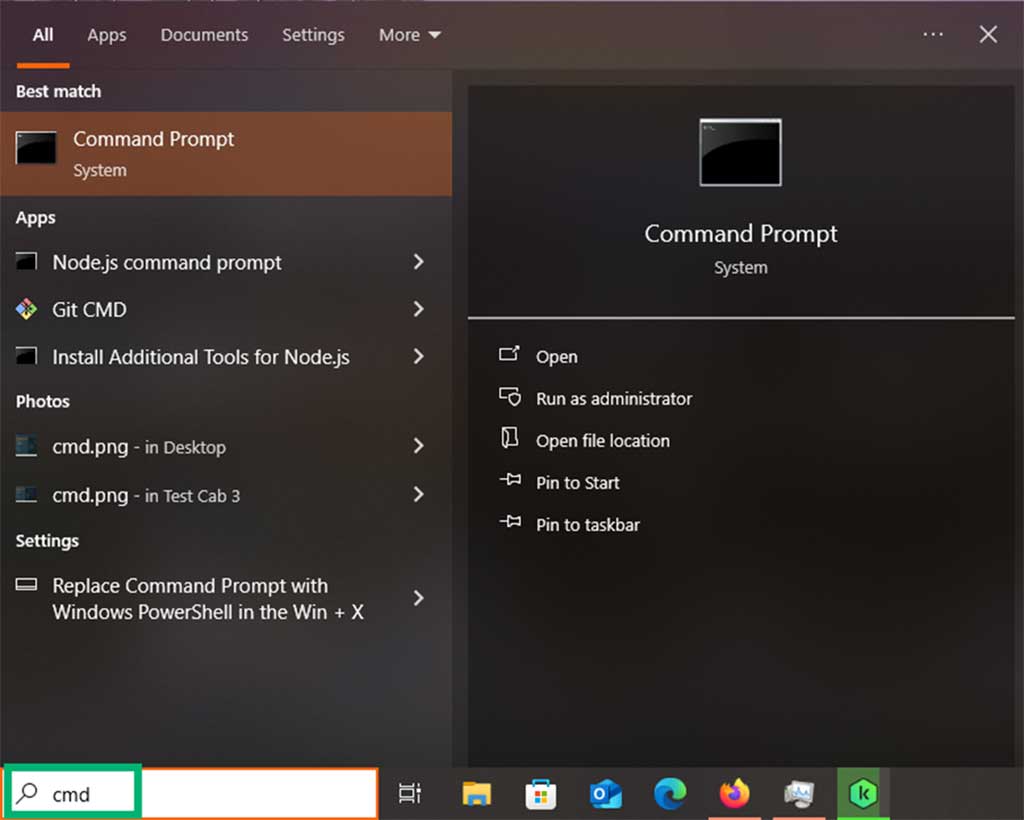
- In the Windows search bar and enter cmd and open a command prompt.
- Type netstat -an | find “:443” and press Enter.
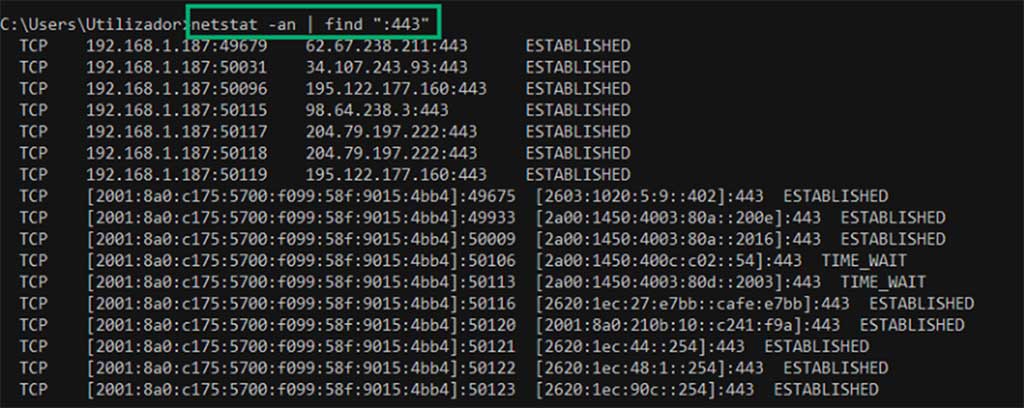
Can you see a list of connections as shown in the screenshot above? Great, port 443 is open.
If you didn’t get any output, port 443 is closed. Jump to the next section to find out how to open your device’s 443 port.
Pro tip: If you don’t want to use the cmd, you can also use a browser-based online scanner (e.g., yougetsignal). Beware, though: while quick and convenient, these tools will test the connection using external servers. Thus, they might not take into account your firewall rules or internet service provider’s restrictions.
Linux
Do you have a Linux device but aren’t sure how to answer the question: “Is port 443 open on your machine?” We’re here to help.
In this article, we’ve used Linux Mint as an example, but the processes described work with any Linux platform (e.g., Debian-based, CentOS, and RHEL), no matter if your web server uses Apache or Nginx.
To start:
- Click on the Ubuntu/Linux Mint menu button and select the terminal icon. As shown in the screenshot below:

- Enter the following ss command to identify processes listening on port 443: sudo ss -tulpn | grep :443. Type your root password. Here’s an example of what you’ll get when port 443 is closed: a blank screen (i.e., no results).

Otherwise, it will display a list of identified IP addresses (followed by :443) for processes listening on the 443 port. But this isn’t our case for now. So, if your port also isn’t open, follow our step-by-step instructions to remedy the issue.
Pro tip: There are several ways to verify open ports in Linux. For instance, you can still use the netstat command (i.e., sudo netstat -tulpn | grep LISTEN | grep :443). To check the port status on a remote server, install nmap tools on the server (i.e., using the command sudo apt install nmap -y) and use the nmap command (nnmap -p 443 <remote machine’s ip>).
How to Open Your 443 Port
Now that you know how to check whether the 443 port is enabled, let’s discover how to allow traffic through it so that you can leverage the additional security layer offered by HTTPS and SSL/TLS certificates.
Windows
If you’re a Windows 7, 8, 10, or 11 users, to open the 443 port to allow internet traffic, you’ll have to add a rule to your Windows Defender Firewall. For this example, we’ve used a Windows 10 platform.
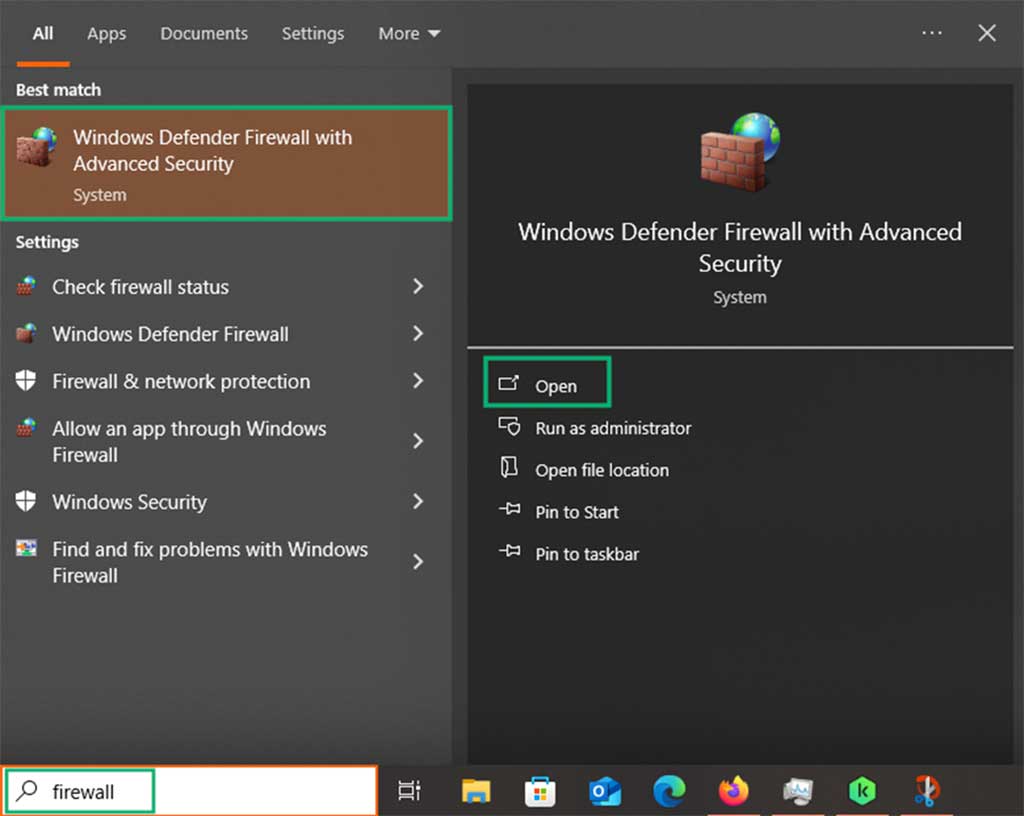
- In the Windows search bar, type firewall and select Windows Defender Firewall with Advanced Security. Click Open.
- In the top-left corner, select Inbound rules.
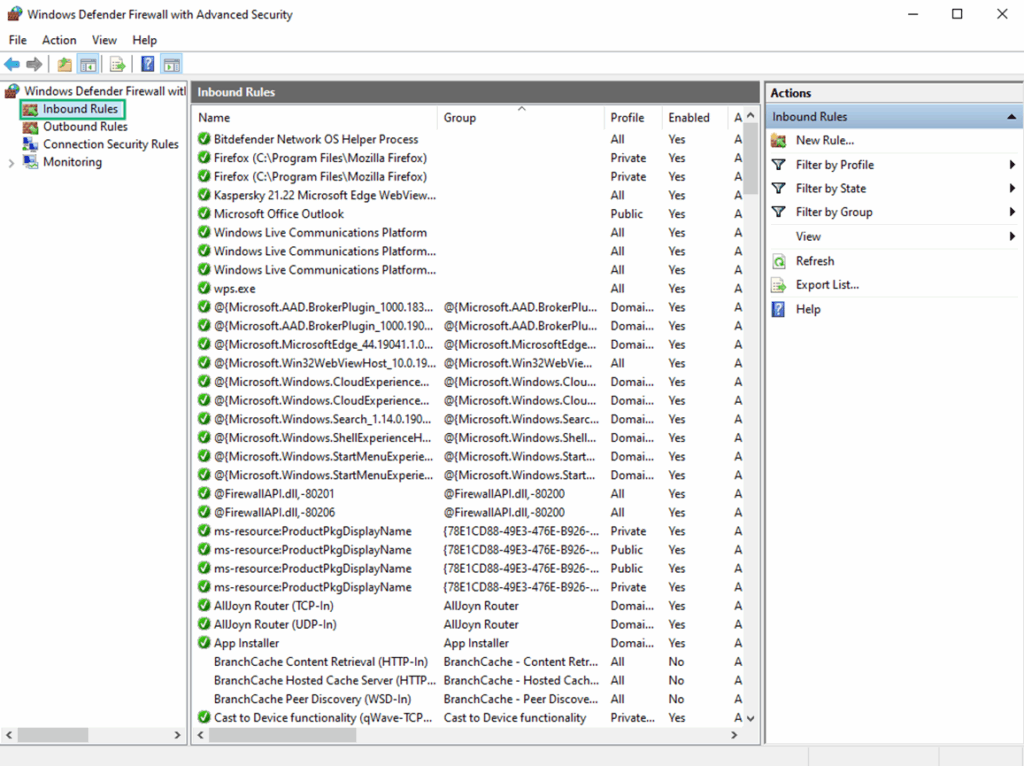
- In the right-side panel, under Actions, click on the New rule option. A pop-up window will open.
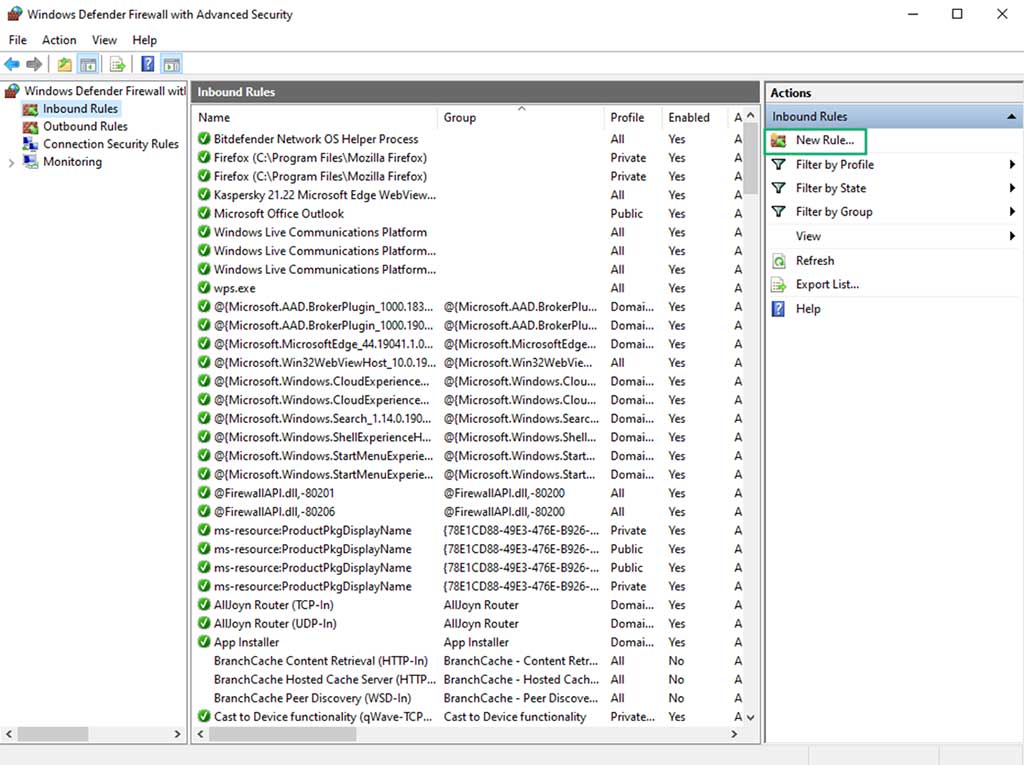
- Select the Port radio button and hit Next.
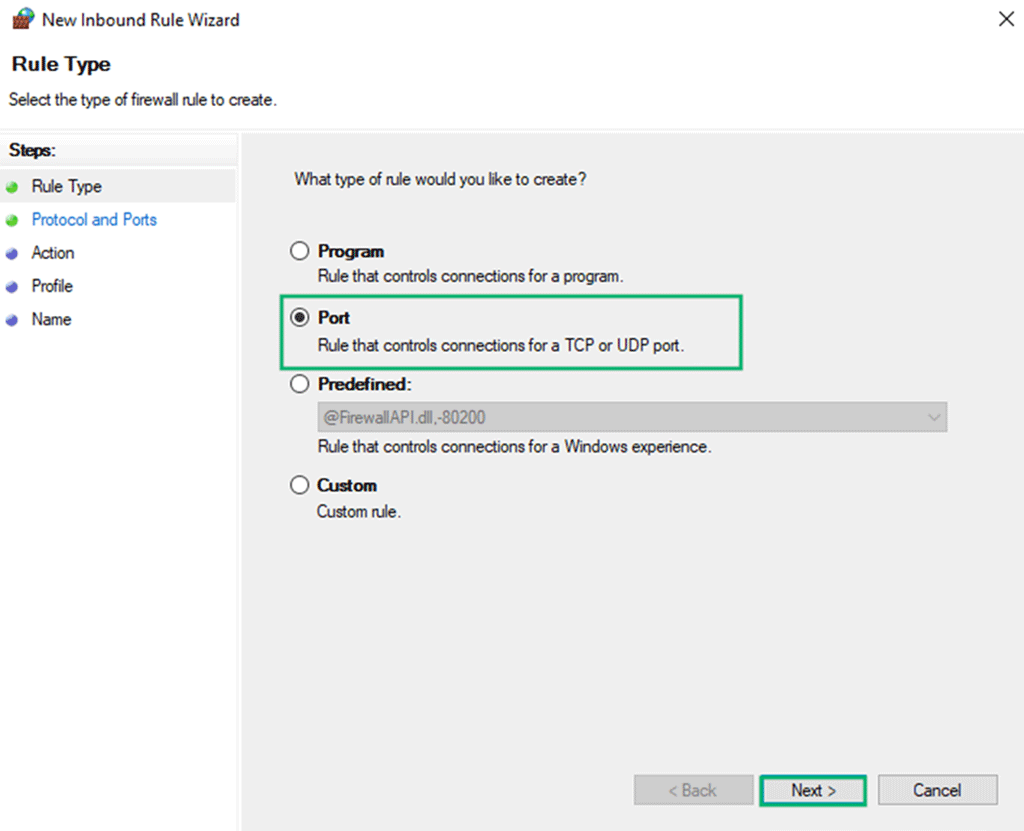
- Select the TCP protocol and Specific local ports. In the box next to Specific local ports, type 443 and click Next.

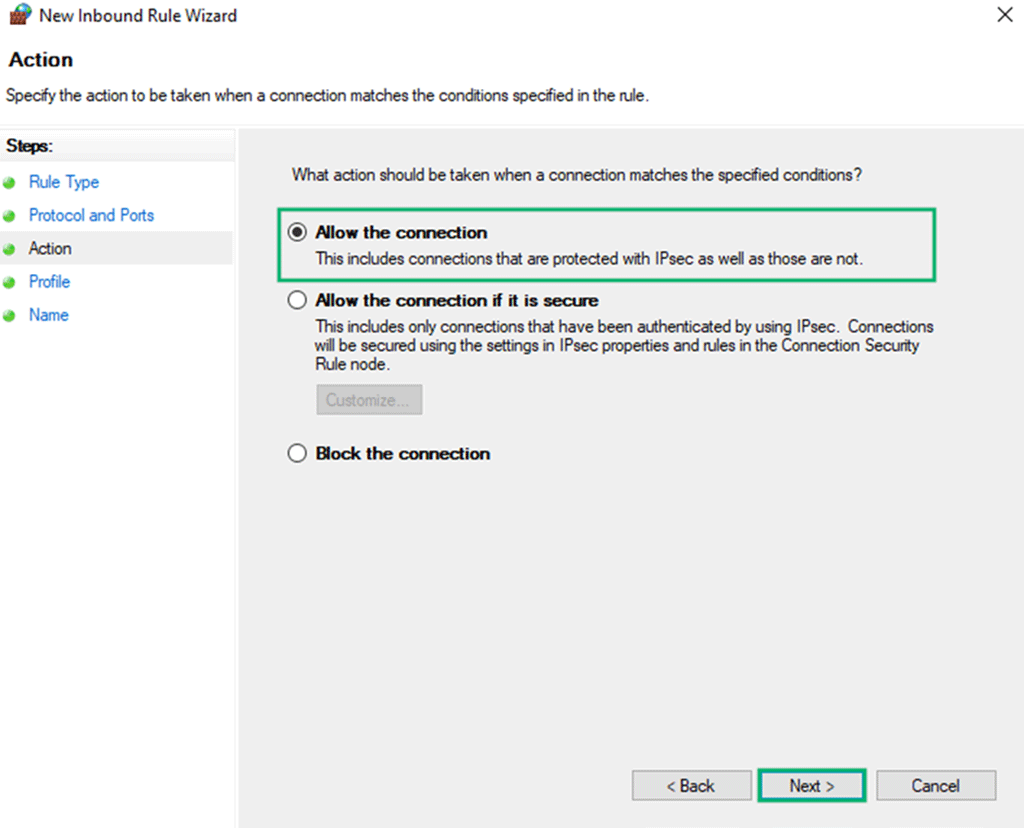
- On the next screen, choose Allow the connection and hit Next again.
- Pick the network profile that you want this rule to apply to and click Next. In the following example (as shown in the screenshot below), we chose all three profiles — Domain, Private, and Public — to open port 443 for all network environments.
Pro Tip: Do you want to open port 443 open for one specific location only? Select the related profile. For instance, if you want to ensure that port 443 is open only when your computer is connected to a work network, check the Private box only. This way, port 443 will remain closed for all other locations (e.g., public WiFi).
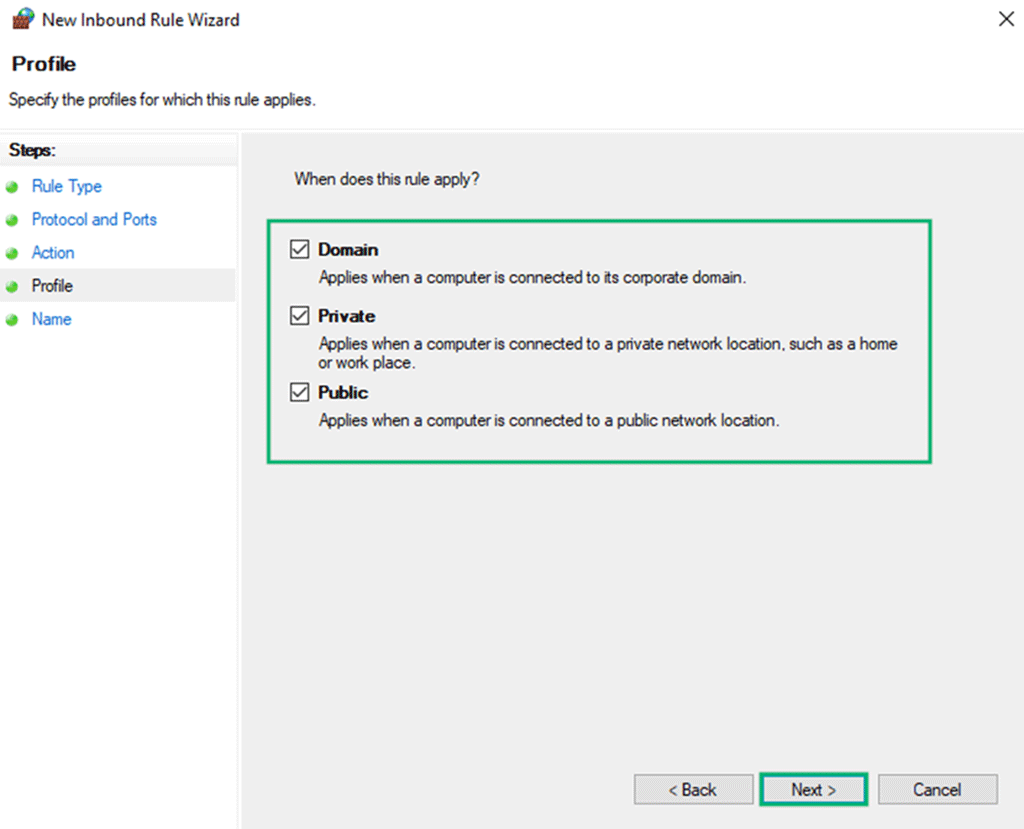
Image caption: The image shows how to specify to which profile the rule applies to.
- Name your rule, add a description, and click Finish.
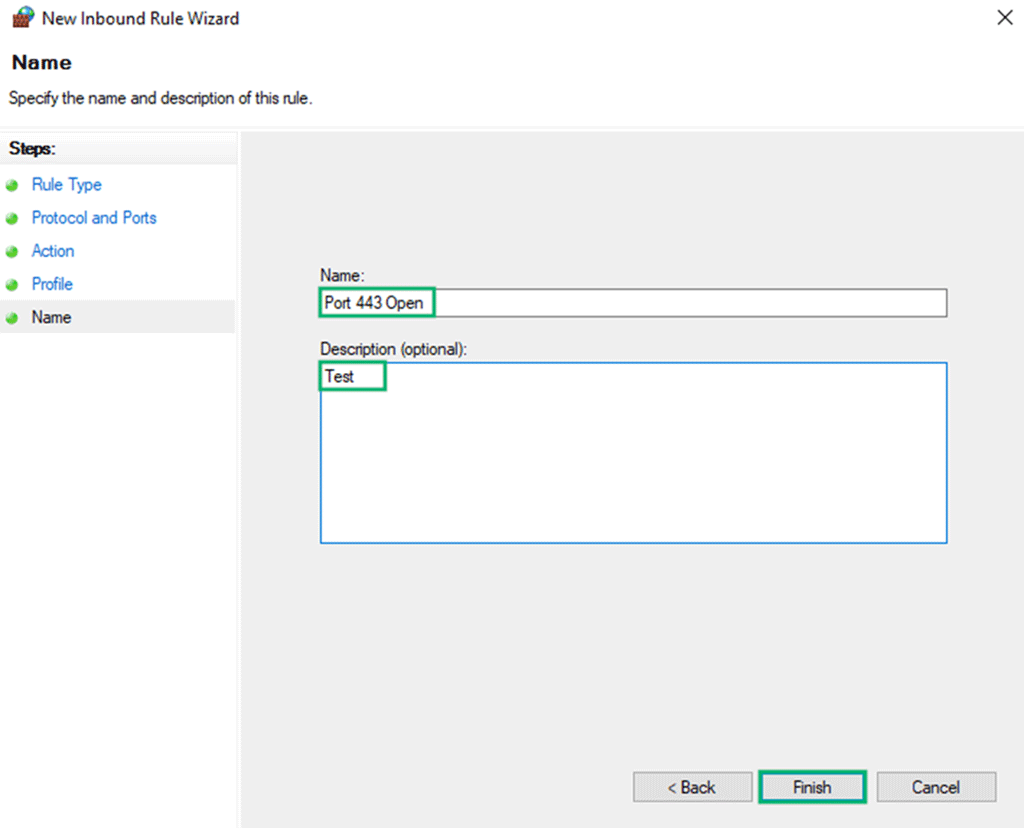
Done and dusted. You’ve now allowed inbound traffic on port 443 in Windows. To open port 443 for outbound as well, select outbound rules at the very beginning of the process (i.e., the first Windows Defender Firewall with Advanced Security screen) and follow the same instructions.
Did it work? Let’s find out!
- Open a command prompt and type ss -an | find “:443” or netstat -an | find “:443” and press Enter. Is port 443 mentioned as in the screenshot below? Congratulation! You’ve successfully opened port 443.
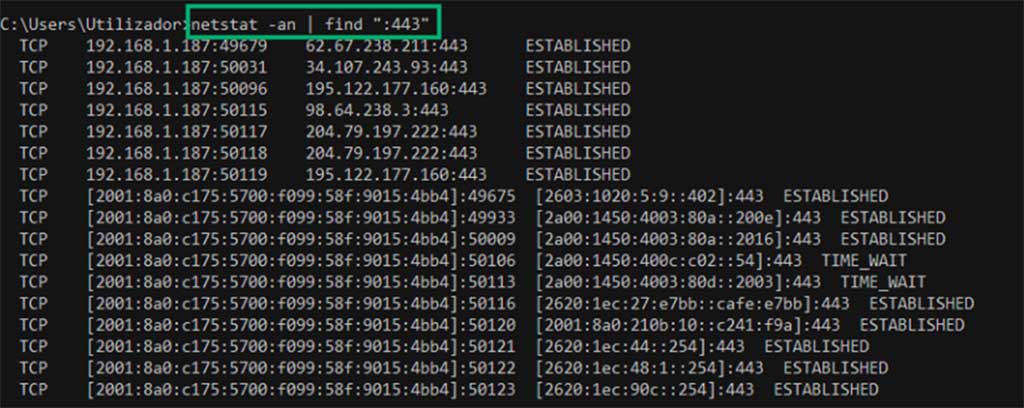
Pro tip: Are you having trouble and the port is still closed? The problem can be caused by different issues, including conflicts in your firewall settings and your internet service provider (ISP) rules. In fact, several consumer routers and firewalls often include default rules that block port 443. Organizations’ firewalls are also usually configured with stricter criteria. In either case, get in touch with your network administrator, as they can open the port for you in a flash.
Linux
Do you use a Linux machine and want to know how to open your 443 port? IPTables is the mechanism that all Linux distributions use for traffic management. That’s what we’ll use in this demonstration.
- Do you still have your terminal open? Great, move on to the next step. If you don’t, open the terminal again using the same method demonstrated earlier in this guide. Depending on the distro, the process might slightly differ. In Linux Mint and Ubuntu, for example, you just have to hit the menu button and select the terminal icon.
- In the terminal, type the following command: iptables -A INPUT -p tcp –dport 8182 -j ACCEPT. To ensure you’re entering the command as root, add sudo or su in front of the script. Once again, you’ll use one or the other, depending on the distro. Then hit Enter on your keyboard.

- Save your rule. This is a key step as, once you reboot your system, all unsaved rules are automatically deleted. Use the following script to save it for Debian-based distros: sudo /sbin/iptables–save. Hit enter again.

If you have a CentOS or RHEL system, replace it with the following modified command: sudo /sbin/service iptables save. Press Enter a final time.

Free Firewalls: How to Tell If Port 443 Is Open
Depending on the platform used, you can also open port 443 when you’re using a different firewall application, such as Free Firewall and Uncomplicated firewall. (Note: We’re not recommending either firewall. Rather, we’re just using these as examples.)
Windows: Free Firewall
For this demonstration, we’ve opted to use Free Firewall. It’s one of the few that let you set up specific rules to open port 443 without installing a paid version. It works perfectly with Windows 10 (if you still haven’t upgraded) and 11 platforms. So, once installed:
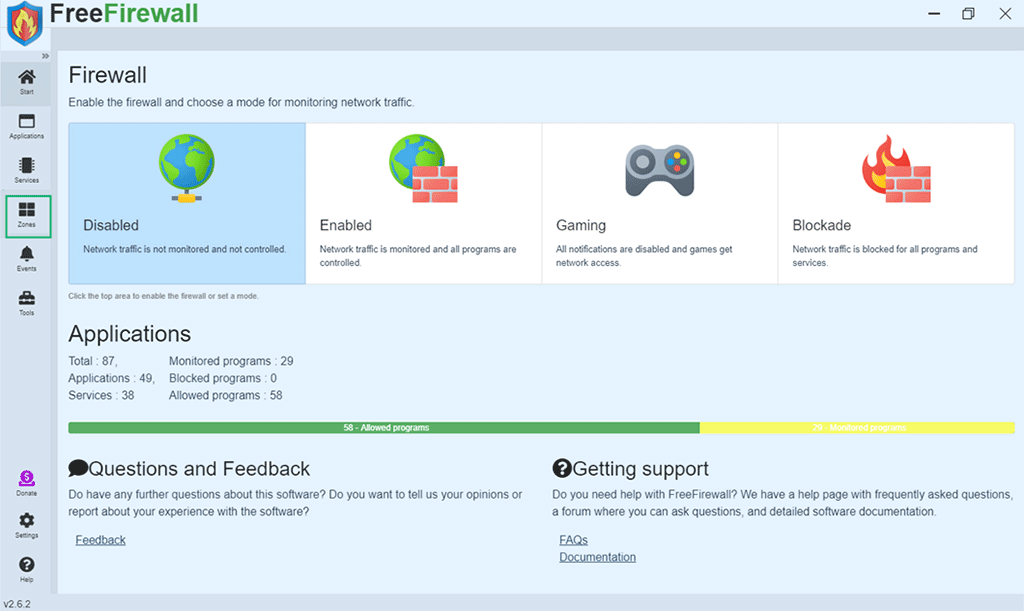
- Open the firewall client and click on Zones.
- Click on the +Add zone button.
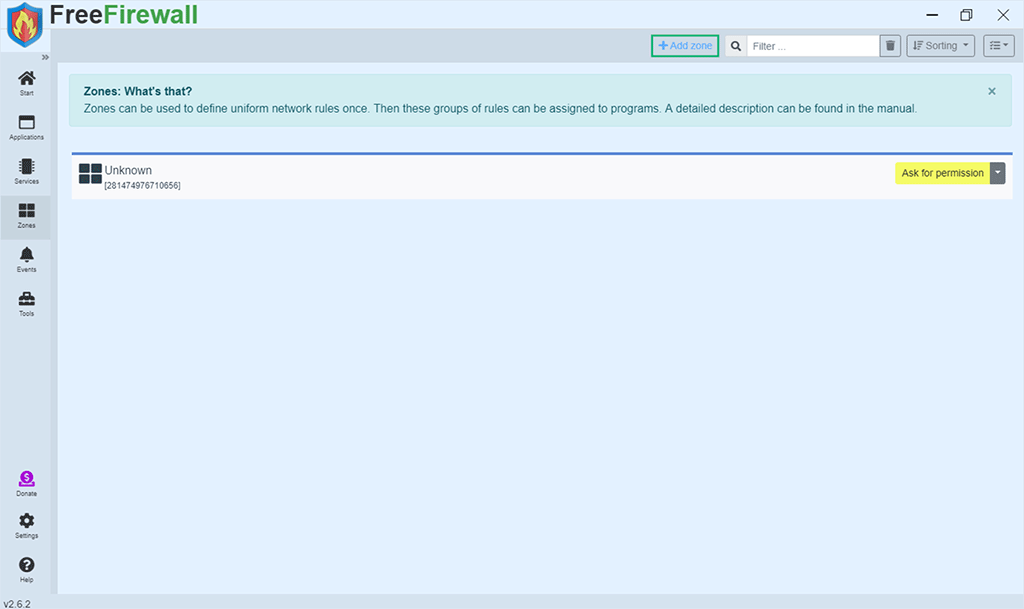
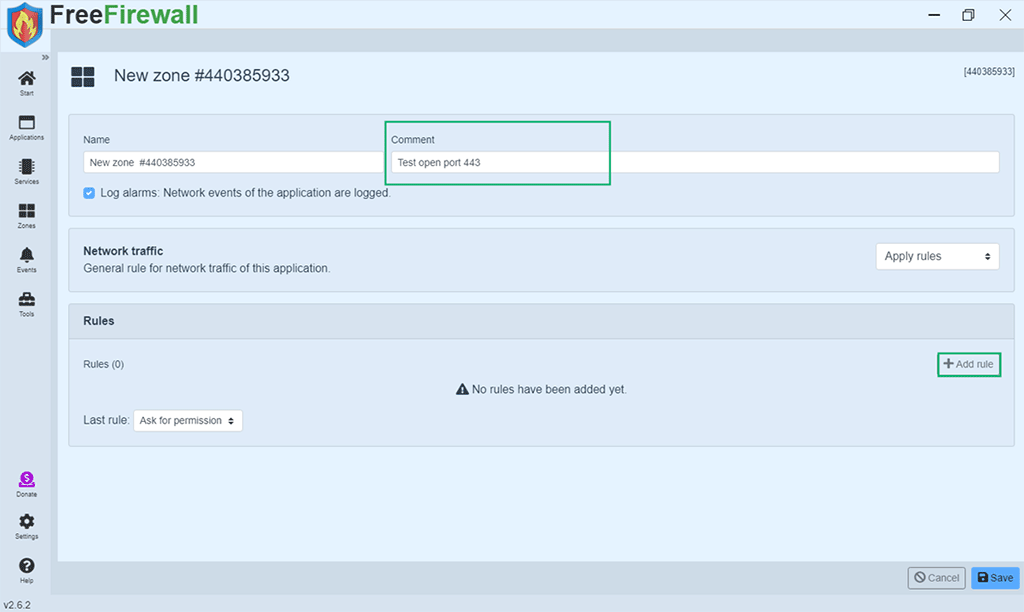
- Enter a comment near the new rule number. If you wish, you can also change the rule name to something more meaningful or memorable. This way, it’ll be easier to spot when you search the logs. (In this example, we’ve left the default name.) In the Rules section, click on Add rule.
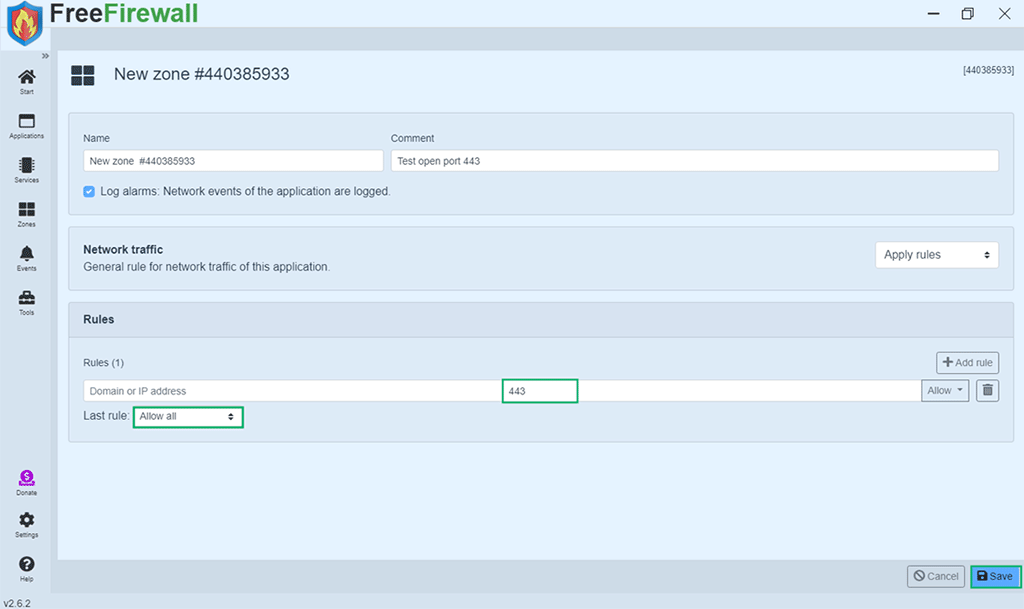
- Type 443. In the Last rule drop-down menu, select Allow all and hit save.
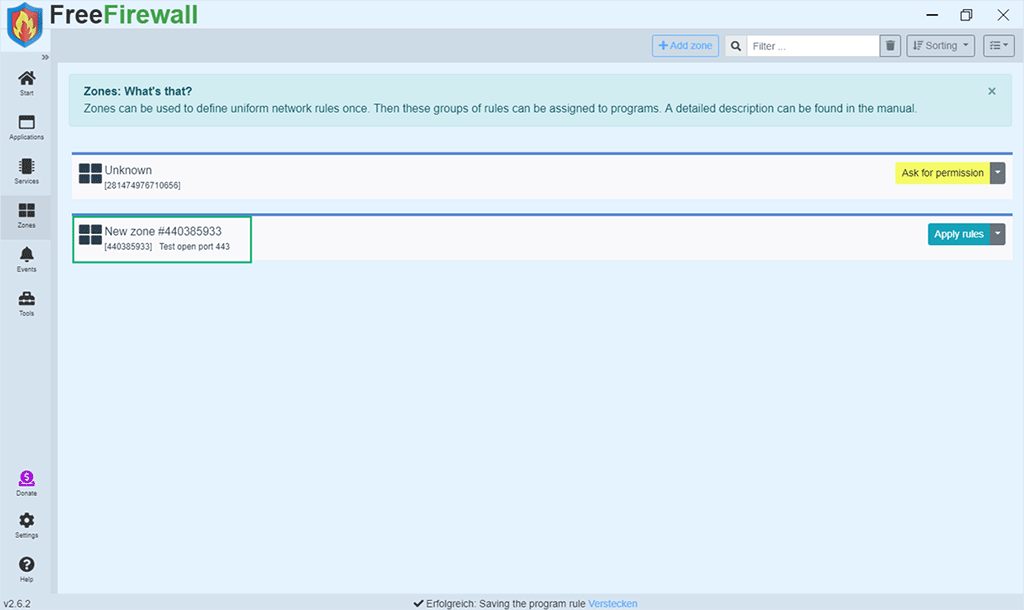
The rule has been saved.
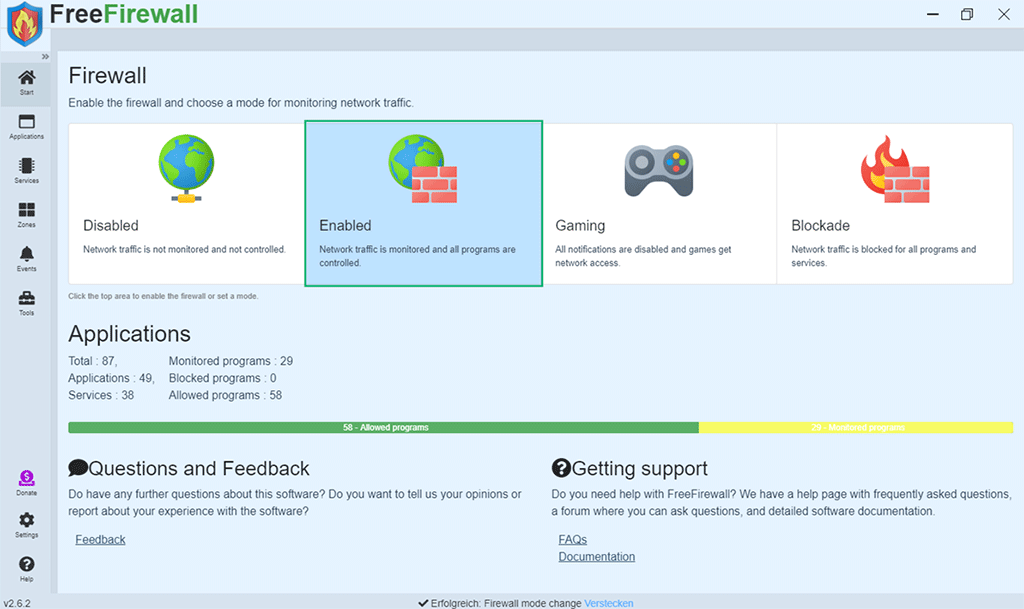
- Finally, go back to the home screen and ensure that your firewall is enabled. If it isn’t, just click on the Enabled tile.
Linux: Uncomplicated Firewall (Ufw)
Ufw is the standard Linux Debian-based platforms firewall interface. To open the 443 port:
- In the terminal type: sudo ufw allow 443 and hit enter. Done! (Yes, it’s really that simple.)
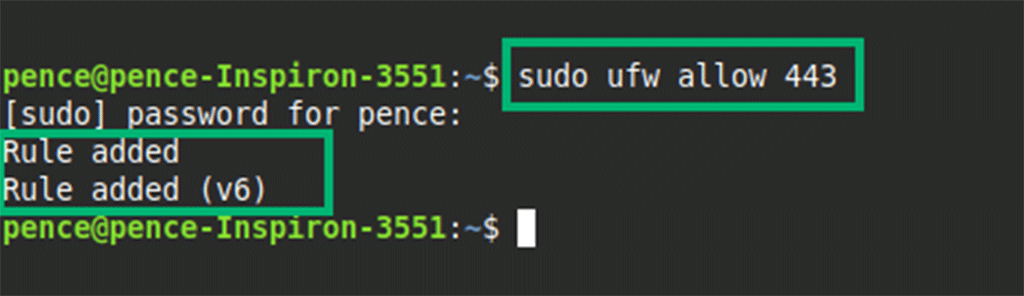
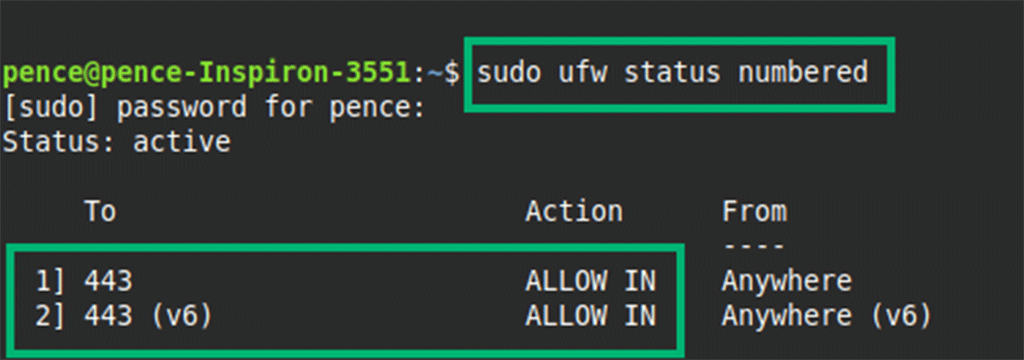
To verify the changes were successfully implemented, use the script sudo ufw status numbered lists to view all the active rules.
Final Thoughts About How to Open 443 Port and Check If It Is Enabled or Not
Now that you know how to check if port 443 is open (and how to open it if not), ensure this is done on all your devices. Enabling the use of port 443 with the help of a trusted SSL/TLS certificate (purchased from a renowned certificate authority [CA] or vendor such as SectigoStore.com) protects your websites, applications, users, and data from breaches, cyber threats, and next-generation GenAI-based attacks.
This small action will also help you comply with regulatory requirements and build user trust by reassuring your customers that their information is encrypted and secure. And that’s invaluable.
Are you looking for other SMB-related security quick tips? Check out the following articles:
- 8 Practical PKI Uses & Applications That Drive SMB Security
- 10 Digital Identity Examples for Small Business Owners
- How to Use Google Cloud KMS with Sectigo Code Signing Certificates (2025 Guide)
- 6 Real-World SMB Cyber Security Threats That Will Keep You Up at Night
- 7 Cyber Security Basics Every SMB Should Know

Manage Certificates Like a Pro
15 Certificate Lifecycle Management Best Practices to keep your organization running, secure and fully-compliant.
Contact details collected on InfoSec Insights may be used to send you requested information, blog update notices, and for marketing purposes. Learn more...









2018 Top 100 Ecommerce Retailers Benchmark Study
in Web Security5 Ridiculous (But Real) Reasons IoT Security is Critical
in IoTComodo CA is now Sectigo: FAQs
in SectigoStore8 Crucial Tips To Secure Your WordPress Website
in WordPress SecurityWhat is Always on SSL (AOSSL) and Why Do All Websites Need It?
in Encryption Web SecurityHow to Install SSL Certificates on WordPress: The Ultimate Migration Guide
in Encryption Web Security WordPress SecurityThe 7 Biggest Data Breaches of All Time
in Web SecurityHashing vs Encryption — The Big Players of the Cyber Security World
in EncryptionHow to Tell If a Website is Legit in 10 Easy Steps
in Web SecurityWhat Is OWASP? What Are the OWASP Top 10 Vulnerabilities?
in Web Security