

All posts by Casey Crane

What to Know About an SSL Certificate for Your Mail Server

Not only do SSL certificates secure your website but you can use them to secure your mail server, too

When people hear the term SSL certificate, they assume that it’s related to website security. Well, they’re not wrong. But what if we were to tell you that an SSL certificate is useful for your mail server as well? Many are not be aware that SSL/TLS certificates to secure mail servers.

A mail server certificate, also called an email server certificate, encrypts email communications the same way SSL certificates secure data transmission happening through a website.

But why is this extra security step necessary? Let’s cover just a few of the top reasons for why you should use an SSL certificate for your mail server:

What Is SSL In Mail

What is an SSL for email? Secure Socket Layer (SSL) is a technology to secure the communication between a client and the server. An SSL for email ensures that the email is not intercepted during the transit and nobody except the intended recipient can access it. An email SSL certificate can also authenticate the identity of the sender. The SSL certificate in your email account serves two purposes – to authenticate the sender’s identity and maintain the integrity of the email. The email certificates are also known as S/MIME or email encryption certificates.

Email Security Is a Must These Days

Although many organizations have moved to messaging apps for internal communications, they still rely on emails for important communication — whether it’s inside the organization or outside. In other words, information that’s sensitive in nature is transmitted through emails. And that’s where the cybercriminals come in.

In many cases of security failure, we’ve seen email acting as their entry-point. According to a survey conducted by Barracuda, it’s been found that the majority (74%) of businesses say email-borne cyber attacks have a significant impact, and 78% said the cost of email breaches is increasing. This is undoubtedly a good enough reason to take your email security seriously, isn’t it?

S/MIME Is Not Enough on Its Own

Now you might say, “But we already use S/MIME certificates (also known as email signing certificates) for encrypting emails, so we’re safe.” Well, not so much. It’s great that you’re using S/MIME. But relying on S/MIME alone can be an issue because S/MIME certificates aren’t installed on a web server; they’re issued to an individual account. Therefore, they might be useful in encrypting an email and sending it to the intended recipient. Still, they’re not helpful if you want to encrypt the entire communication taking place through the email server.

Why You Need an SSL/TLS Certificate for Your Mail Server

Do you know what would happen if you don’t have an SSL/TLS certificate on your email server? Well, without SSL/TLS, there’s no way to verify that the email server that you’re trying to communicate with is the intended server or not. This could lead to an attacker spoofing a web server and extracting the communications in the process. Now, this is quite a dangerous territory.

But, wait, there’s more.

If you haven’t encrypted your mail server, the emails transmitting through your server are in plaintext form, and attackers could easily execute a man-in-the-middle (MiTM) attack and see or tamper with your data. This is a big deal and can lead to data breaches and a litany of other security concerns.

Not to mention that SSL certificate for your mail server helps you to incorporate not only encryption but also identity checks into your protocol. When you use SSL, you can securely log in to your mail server and avoid sending your login credentials across the internet in plaintext.

Webmail Certificate

You can protect the integrity and confidentiality of your emails with a webmail certificate. The following steps will help you to secure your webmail:

  • Go to “Websites and Domains”
  • Select “SSL/TLS Certificates”
  • Select a certificate you want to use
  • Click on “Secure Webmail”

The Limitation of SSL/TLS in Email Security

As we covered, SSL/TLS encrypts emails when they’re in transit. Well, what about when they’re not transmitting and are at rest? The thing is, SSL certs don’t encrypt emails that are resting on web servers. So, that leaves a big security hole in your system. This is why it’s important to incorporate both data in transit and data at rest defense mechanisms.

Now you must be thinking that email security is more complicated than you think. Well, it isn’t. As a rule of thumb, you need to secure your emails on two fronts — when they’re in transit and when they’re resting. In other words, you need to encrypt the emails themselves and you also need to encrypt your email communications channels.

To do so, you need two things — an SSL certificate and an S/MIME certificate. An SSL/TLS certificate will secure your email communications, and an S/MIME certificate will make sure that all emails remain in an encrypted format. Simple, isn’t it?

Save 87% on Email Server Certificates!

Get an SSL certificate for your email server for as a little as $8.95 per year.

Shop Now
What Is a CA Certificate Authority and How Do I Choose the Right One?

Ah, yes, the (internet) age-old question: What is a CA certificate authority and how do I pick the best one for my business and website?

To answer the first half of that question, we’ll explore what a CA certificate authority is and what they do. After that, we’ll tell you about some of the things to keep in mind and flags to look out for when choosing a certificate authority to issue your SSL/TLS certificates.

What Is a CA Certificate Authority?

A CA certificate authority, in reality, is a repetitious term for a certificate authority, or what’s known as a CA. So, when you say “CA certificate authority,” you’re technically saying “certificate authority certificate authority.” But we digress…

A certificate authority is a third-party organization that play essential roles on the internet and its public key infrastructure. This type of entity issues digital certificates for individuals and organizations to use to assert identity and to secure their websites, software, email, and documents through authentication and encryption.

These include X.509 digital certificates such as:

In a nutshell, digital certificates are data files that contain information about the entity that issues the certificate as well as organization or person that requests it. It also includes other information such as:

  • certificate issuance and expiration dates,
  • the type of certificate issued,
  • contact information about the entity, and
  • the certificate’s public key.

Most publicly trusted CAs, such as Sectigo (formerly Comodo CA) participate I something known as the CA/Browser Forum (CA/B Forum), which serves as the governing body for the industry. As such, they must meet and adhere to certain standards and policies outlined by the forum.  

Types of Certificate Authorities

There are two main categories of certificate authorities: root CAs and intermediate CAs. A root CA issues root certificates, which are highly sensitive and typically protected by the CA to ensure its integrity, and the latter issues intermediate certificates. That’s because these certificates are created for different purposes.

A root CA can be used to generate an intermediate certificate, but they should never be used to issue a server certificate (sometimes called a “leaf certificate”) because it leaves the root certificate at risk. That’s why an intermediate certificate, which can be used to issue a server certificate, serves as a buffer between a root certificate and a server certificate.

What Does a Certificate Authority Do?

As we mentioned earlier, a CA certificate authority issues all types of X509 digital certificates. But before they issue a certificate, though, they first need to verify information about the domain and/or organization requesting the certificate. With SSL/TLS certificates, for example, there are three main levels of validation: domain validation (DV), organization validation (OV), and extended validation (EV).

The first is the most basic form of validation and involves an automated process through which the CA verifies the domain (by sending the requester a link in an email). The second is more in-depth validation that involves the CA’s staff manually reviewing and verifying information relating to the requester and their organization. The third, by far, is the most in-depth validation process that requires the CA to verify additional information about the organization.

So, in addition to issuing digital certificates, CAs also verify the legitimacy or a website and the individual or organization requesting the certificate. As a result, web browsers like Google Chrome, Mozilla Firefox, Apple Safari, Microsoft Internet Explorer and Edge trust certificates that are issued by CAs.

How Do I Choose a CA Certificate Authority?

When choosing between different CAs, there are several things you’ll want to consider. For example, you’ll want to choose one that’s reliable and has a great reputation in the industry. For example, Sectigo is the world’s premier certificate authority and has been around for more than two decades (formerly as Comodo CA). At SectigoStore.com, we’re a Sectigo Platinum Partner, which helps us get the best and lowest prices on Sectigo and Sectigo sub-brand digital certificates!

When choosing a CA certificate authority, you’ll want to find one that fits your budget, but that shouldn’t be your only consideration. Other important considerations include:

  • warranties — warranties can range from $10,000
    to $1.75 million!
  • customer service or technical support — some CAs
    offer support in different ways, including email, phone, and web chat. Choose a
    CA that offers all of them!
  • trust seals — a trust seal helps you to establish
    greater trust with site visitors and customers. Choose a CA that offers the
    right website trust seal to meet your needs.

At SectigoStore.com, our digital certificates are price at the lowest cost you’ll find anywhere. See for yourself:  

Save Up to 87% on DV SSL Certificates!

Get a PositiveSSL DV SSL/TLS Certificate for as a little as $8.95 per year.

Shop Now
 

What Is S/MIME and How Do I Install It on My iPhone?

Here’s what S/MIME means and how to install an S/MIME certificate on your iPhone

Wondering “what is S MIME?” or “what does S MIME mean on iPhone?” Or, perhaps, maybe you’re wondering how to install an S MIME certificate on your iPhone. Well, you’ve come to the right place. S MIME, typically written S/MIME, stands for secure/multipurpose internet mail extensions. It’s an email signing protocol that enhances email security by providing end-to-end encryption.

An S/MIME certificates allows you to:

  1. Digitally sign your email to ensure your recipient that it was sent by you and no one else. In technical terms, an S/MIME certificate allows your recipient to authenticate the message.
  2. Encrypt and decrypt your email messages before they’re ever sent.
  3. Maintain integrity of your messages/document by not allowing any unauthorized third party to tamper with the content of the email.

When it comes to security, S/MIME certificates works in tandem with TLS mail server encryption to go a step beyond email server encryption, which encrypts data in transit, to encrypt and protect the emails themselves that are stored on the servers.

What Is S/MIME Control

If you want to install the S/MIME control for Microsoft Outlook, follow the instructions given below:

  • Install S/MIME extension through Registry or Group Policy
  • Configure S/MIME extension
  • Download and install the S/MIME extension
  • Set up S/MIME setting in Outlook on web

How Does S/MIME Work?

An S/MIME certificate for an email is the modern-day equivalent of hand-signing a letter. When you send an email using S/MIME, it gets stamped with a digital signature that authenticates you. So when the recipient receives the email, the signature gets verified against the sender information and decrypted only if it’s found valid. This provides non-repudiation of origin.

S/MIME is based on asymmetric encryption. This encryption method involves two distinct — yet mathematically related — keys. One of these keys is called a public key and the other one is called a private key. When the sender sends an email using an S/MIME certificate, the email gets encrypted using the recipient’s public key. While the recipient can decrypt this message using the private key associated with the public key. No one else can decrypt the information. This means an email will stay secure so long as the private key isn’t compromised.

How to Install an S/MIME Certificate on an iPhone

If you’re an Apple iPhone user, you can install an S/MIME certificate on your device to secure your email communications. To do so, you’ll need to install an S/MIME certificate on your iPhone. Please note that you can install an S/MIME certificate only if you’re using an iPhone 5 or a newer model.

Here’s how you can install an S/MIME certificate on your iPhone:

  1. In your iPhone, open the email that consists of the certificate files (assuming that you’ve already completed the certificate generation process).
  2. Import the certificate file by following all the prompts and save the .p12 file to a location that you can easily recall.
  3. Open the file you just saved. Enter the password of your device.
  4. Now, you’ll be asked for the password that you created at the time of certificate creation. Enter it and proceed.

Now, your certificate is successfully installed on your iPhone.

Set Up an S/MIME Certificate on an iPhone

Once you’re done with the certificate installation process, it’s time to set up an S/MIME certificate on your iPhone.

  1. First, go to Settings and select Accounts & Passwords.   
  2. Now, select the account that you want to set up.
  3. Go to Advanced after selecting the specific account.
  4. Navigate to the S/MIME section and enable S/MIME.
  5. Enabled the sign toggle and select the S/MIME certificate you installed.

Save 21% on Email Signing Certificates!

Get an Email Signing Certificate for as a little as $12.95 per year.

Shop Now


How to Resolve an SSL Connection Error on Android Devices

Facing a pesky SSL error in Android that won’t go away? Here are a few potential solutions

If you’re using an Android device, it’s likely that you’ve come across the browser message that says, “your connection is not private.” Once is fine, twice is okay, but it gets really annoying if you face this message every other day. But don’t you worry — we’ve got you covered. We’ve analysed several possible reasons behind this SSL connection error and have come up with a list of solutions you can easily implement.

In this post, we’ve outlined these seven solutions to help you get rid of this pesky SSL connection error. If one doesn’t work, try the next. Eventually, you should be clear of this warning and start loving your device again.

Let’s get started.

7 Ways to Solve Your Android SSL Connection Error

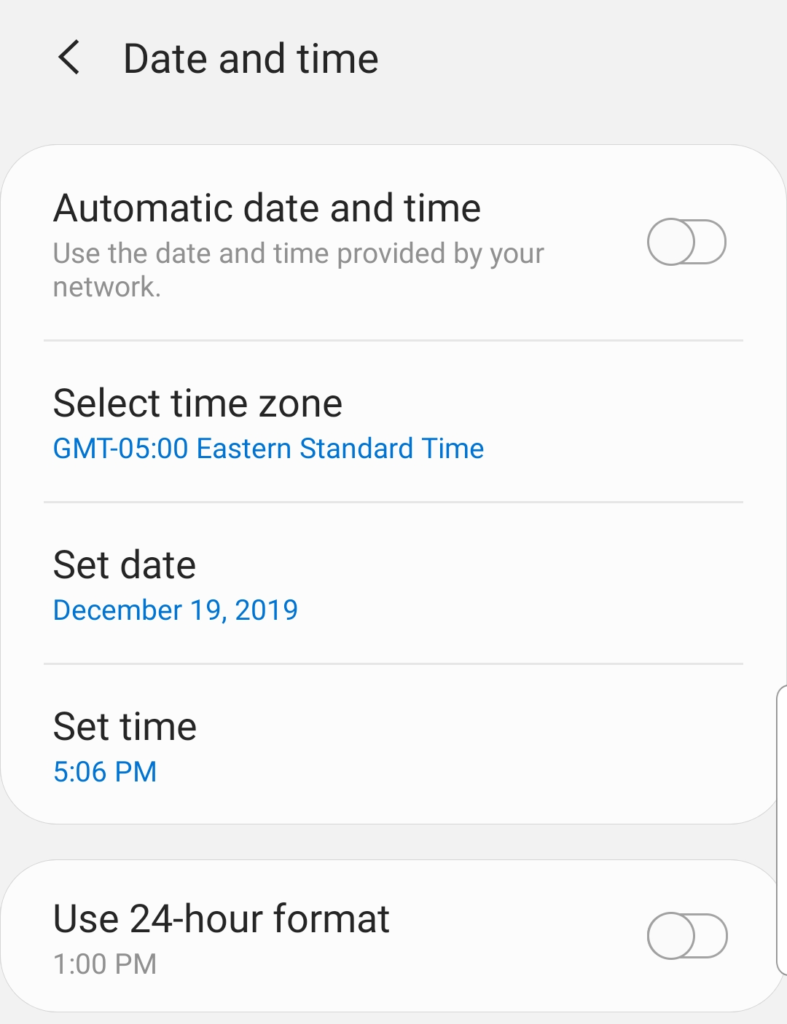
1. Correct the Date & Time on Your Device

This might sound like the easiest and most obvious solution, but users frequently face this error because they have an incorrect date and time set. So, the thing that you need to do is set the data and time option to automatically update. This will ensure that your date and time settings are always current

Screenshot of the date and time settings on an android device. This is one solution for one or more types of SSL connection errors.

2. Clear Browsing Data of Google Chrome

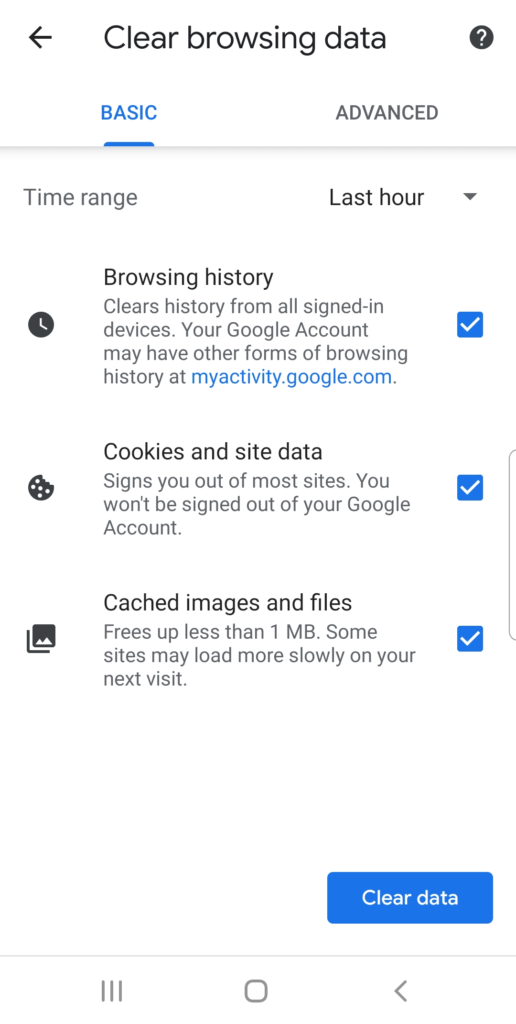
Your browsing history and cache might be causing you to receive this SSL error. The way to move past this is to delete the browsing data. Here’s how you can do it:

  • Open Google Chrome and then go to Menu.
  • Go to Settings and select Privacy.
  • Now, tap on Clear Browsing Data. Check all the boxes and select Clear Data.
Screenshot of browsing data settings on an Android device

3. Reset Your Network Settings

Another thing that might be coming in between you and the website is your network settings. It’s very difficult to pinpoint it to any single reason and, therefore, we suggest resetting your network settings. You can do this by going to Settings and then selecting Network Settings. There, you should find an option that will allow you to reset the network settings.

4. Deactivate Your Antivirus App

Antivirus app/software is one of the most common reasons behind the SSL error. Unfortunately, this problem has only one solution and that, too, is temporary. The solution is to disable your antivirus and then trying to access your website. Please note, however, that it’s never a best practice to disable your antivirus solution because it leaves you vulnerable to threats.

5. Update Your App/Browser

Again, this is a simple solution that’s easy to overlook, but it could be the very solution that you may be looking for. Try updating your app/browser and then the website that’s giving you a hard time.

6. Visit Website in an Incognito/Private Mode

If nothing’s worked till now, this is a solution that you must try. Although it’s a temporary solution, you should open the website in the private/incognito window of your browser.

7. Reset Your Device

Now, this is the last resort. So, carefully consider whether you really want to go for it or not. Resetting your device would mean losing all the personal data on your device, so make sure that you back up all your data before thumping the hammer!

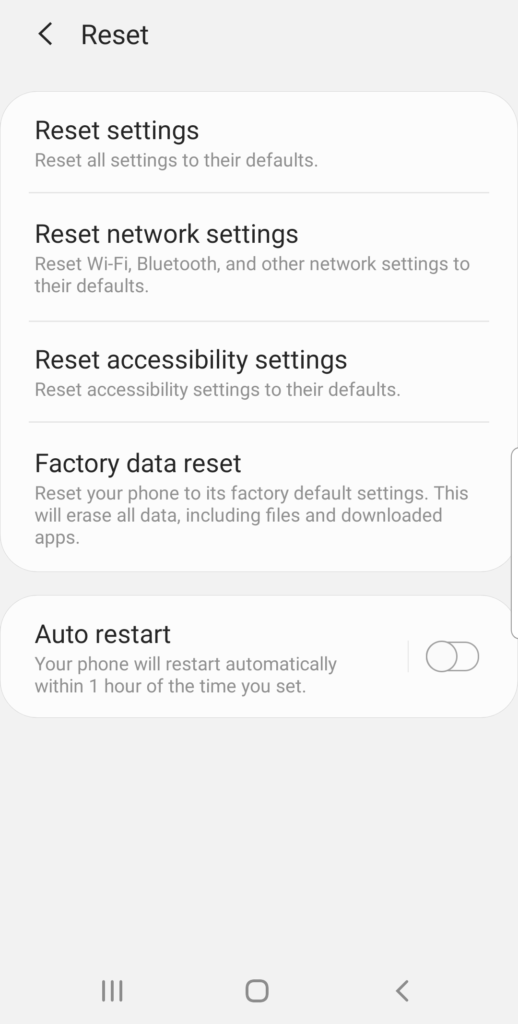
To reset your device, go to Settings and select General Management. There, you’ll next want to choose Reset and select Factory Data Reset. Once you read through all of the information on the next screen, select Reset.

Screenshot of reset settings on an Android device

Save Up to 82% on Your Next SSL Certificate!

Get an SSL certificate starting for as little as $8.78 per year.

Shop Now

What to Know About Code Signing Certificates for Individual Developers

Wondering how you can get an individual code signing certificate? Here’s your answer

If you’re thinking of protecting your software/code/app using an individual code signing certificate, you’re definitely thinking in the right direction. This is because of the two things a code signing certificate brings to the table: validity and code integrity.

  • The former communicates to users that a verified, legitimate publisher is behind the software they’re about to install. Thus, it bridges the trust gap and helps you to establish credibility and increase your number of downloads.
  • The latter assures users that the software hasn’t been tampered with and has stayed in the intended format since its creation.

But, wait, aren’t code signing certificates for businesses and organizations only?

Yes, usually, code signing certificates are used by organizations that create software. That’s there’s often a misconception that they’re only for companies and individuals (because they must legally register as an organization). Of course, this isn’t the entire truth. If you’re a lone wolf, you don’t need to register as a wolf pack (#PunIntended). You can get an individual code signing certificate for yourself that is just as valid as the ones that organizations get for themselves.

Let’s understand individual code signing certificates through some of the most commonly asked questions.

Is There Any Difference Between Individual Code Signing Certificates and Those Issued to Organizations?

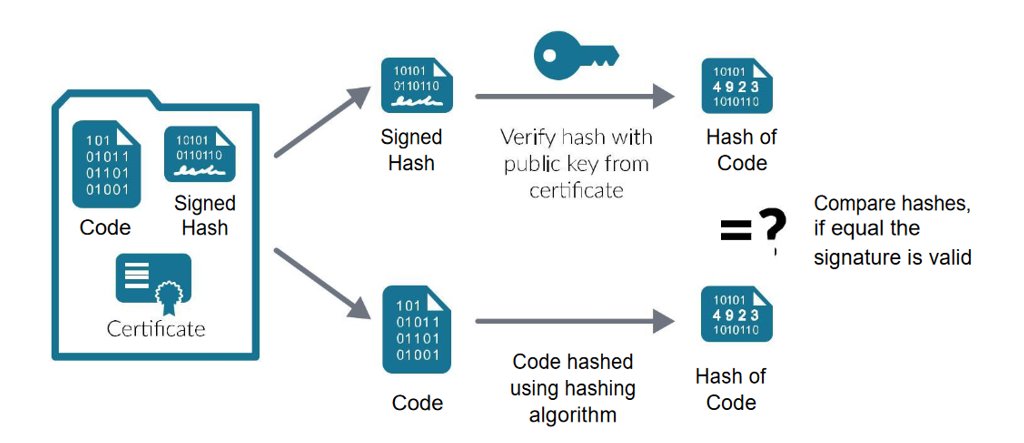
No. At the end of the day, code signing certificates are code signing certificates. Their function is to sign the code using public key infrastructure (PKI), and it’s done the same way regardless of whether you’re an individual or a company. In other words, a code signing certificate is like a computer program that encrypts your code and doesn’t let anybody alter it except you. So, it doesn’t matter whether the software is created by a company or an individual programmer.

Graphic: how code signing works with either an organization or individual code signing certificate
How code signing works using an organizational or individual code signing certificate.

If There’s No Difference, Why Are They Classified Differently?

A crucial element of a code signing certificate is the vetting process that’s done before a certificate authority issues a code signing certificate. Needless to say, the verification process would differ for companies and individuals. And that’s why these certificates are issued differently for companies and individuals.

I Want to Issue a Certificate for Myself. What Will the Certificate Authority (CA) Verify?

Right now, Comodo is the only certificate authority that issues individual code signing certificates. The verification process conducted by Comodo requires you to provide three documents:

1) Government-Issued Identification,

2) Financial Documentation, and

3) Non-Financial Documentation.

The following documents are approved by Comodo:

  • Government Identification
    Verification (Any One):
    • Passport
    • Driver’s License
    • Personal ID Card
    • Military ID
  • Financial Document
    Verification (Any One):
    • Credit Card Statement
    • Debit Card Statement
    • Mortgage Statement
    • Bank Statement
  • Non-Financial Document
    Verification (Any One):
    • Utility Bill
    • Lease Agreement
    • Birth Certificate
    • Tax Bill

Furthermore, you’ll also need to complete a telephone verification as well as a final verification call.

To learn more about the individual verification process, check out this article in our Knowledge Base.

Where Do I Purchase an Individual Code Signing Certificate?

At SectigoStore.com, we’re proud to share with you that we’re the only certificate authority offering signing certificates to individuals. When you purchase your individual code signing certificate directly through us, you can get it cheaper than anywhere else (we’re not boasting, we give you a price-match guarantee). Plus, you get all the support and assistance you need.

Save Up to 42% on an Individual Code Signing Certificate!

Get a code signing certificate made for individual developers, freelancers and start-ups from SectigoStore.com!

Shop Now

What is an SSL ‘Certificate_Verify_Failed’ Error and How Do I Resolve It?

We know setting up SSL certificates with Python can be confusing — that’s why we’re here to help

graphic: ssl certificate_verify_failed error instructions for how to fix the issue

When you’re dealing with Python or any programming language at all, there’s plenty of room for mistakes to be made or technical errors to occur. Among these potential errors is the Python SSL “certificate_verify_failed” error. Getting this error can be frustrating, especially if you’ve done your best to ensure that everything is done right.

When dealing with this error, it’s important to know that it isn’t hard to solve — but it does require patience.

That being said, before you can fix the issue, you need to understand why it occurs in the first place. Let’s dive into the reasons this error occurs, as well as what you can do to address it.

What Causes an SSL Certificate_Verify_Failed Error?

SSL certificate_verify_failed errors typically occur as a result of outdated Python default certificates or invalid root certificates. If you’re a website owner and you’re receiving this error, it could be because you’re not using a valid SSL certificate. Here’s where you can get one:

Buy an SSL Certificate Starting at $8.95 Per Year!

Get the best deals on SSL certificates from SectigoStore.com.

Shop Now

Since this error is usually paired to web page scrapers in Python, let’s assume that this is a typical scenario where the error happens:

First, imagine you’re trying to scrape a page. You fire the scraper up, only to be met with an error page.

Don’t worry, though. This issue can be resolved with a simple command, which we’ll get to shortly.

But what causes the error? The issue comes from your web browser attempting to download a program that it will not let it download because of the expired SSL certificates that came with your version of Python. (Since that version of SSL is no longer deemed “safe” by Python, your end users receive the warning message.)

How Can I Fix the SSL Certificate_verify_failed Error?

Some people might suggest that you simply disable the certificate verification function. But this tactic not only fails to resolve the issue, but also means that you’re no longer verifying the certificate, which can lead to a variety of other issues.

To fix this this problem, you may need to upgrade your SSL certificate directory. The most common way to do so is to use the following PIP code.

PIP, which stands for “Python Package Installer,” is exactly how it sounds — it’s a package installer for Python. This command allows for easy installation of packages — or, in this case, our updated SSL certificates. With PIP, all you would have to do to update your SSL certificate directory is input the following piece of code:

pip install --upgrade certifi

What this command does is update your system’s SSL certificate directory. This allows you to download the files that were previously being denied as a result of the lack of an SSL certificate (which, in this case, was the page scraper).

After executing the code, the error should be gone.  That wasn’t so hard, was it?

Troubleshooting Guides

What an SSL Security Certificate Is and How to Get One

Are you a website owner? Here’s why your site needs an SSL security certificate

If you’re reading this article, it’s probably because you’ve heard about an SSL security certificate, and you’re looking for more details on what it is, why you need it, and how to get an SSL security certificate for your website. You’re in the right place!

What is an SSL Security Certificate?

An SSL security certificate is an important website feature that protects users’ confidential information. If you’ve been to a website and noticed a padlock and/or https:// at the beginning of the website URL, that’s because that site was using an SSL security certificate.

Graphic: SSL security certificate display in URL bar

How an SSL Security Certificate Works

Once the certificate is installed on a website, it enables HTTPS (as shown in the screenshot above). This secure protocol offers two benefits:

  • Encryption. All data sent to and from the website is sent via an encrypted channel so hackers or eavesdroppers can’t intercept it. This includes data such as passwords and credit cards that a user submits to a website.
  • Identity. Because the certificate is verified by a trusted certificate authority (CA), the user can easily verify that they’re connected to the correct website, not a fake website run by a hacker.

Note: An SSL security certificate needs to be issued and verified by a trusted certificate authority. This is how a website visitor ensures that the certificate and website are valid.

Why You Need SSL Security for Your Website

Here’s why you should install an SSL certificate on your website:

  • Protect your users. Ensuring your users’ data is encrypted in transit is an important way to protect your users from hackers, government spying, ISP snooping, and other privacy threats.
  • Boost Google rankings. Google rewards websites that use HTTPS security by ranking them higher in their search results. Not to mention, since the release of Chrome 68 in 2018, HTTPS is mandatory.
  • Improve sales. Customers trust a website that uses HTTPS security and are more likely to trust you with their confidential data, including payment details, email addresses, and more.
  • Change site display. Instead of seeing “Not Secure” when visiting your site, your users will see security indicators such as HTTPS and a padlock.

How to Get an SSL Security Certificate for Your Website

The good news is that it’s pretty easy to get and install an SSL security certificate on your website. Here are the steps you’ll need to take to get SSL security for your website.

  1. Purchase the certificate. You’ll need to purchase the certificate from a trusted certificate authority such as Sectigo.
  2. Generate your CSR. You can generate a certificate signing request (CSR) from your web hosting control panel.
  3. Complete validation. The certificate authority will need to validate your request. With domain validation (DV) certificates (the most popular type), this process is as simple as clicking on a confirmation link in an email. Simply put, it doesn’t get much easier than that.
  4. Install the certificate. You can easily install your certificate through your web hosting control panel.

Having issues? Just reach out to our 24/7 SSL support team for help any time!

Save 79% on SSL Security Certificates!

Get the lowest prices on trusted SSL certificates from Sectigo.

Shop Now

What is a Safe SSL Transaction and How Do I Enable It on My Site?

Here’s how to secure transactions on your website with SSL security

If you’ve seen a website advertising that it enables a “safe SSL transaction” or “secure SSL encrypted transaction,” you may be wondering — what is that, and how do I get it on my site?

Here’s what you need to know about SSL transactions and how to enable this feature on your website using an SSL certificate.

What Is a Safe SSL or Secure SSL Encrypted Transaction?

Both of these statements refer to the same thing — a transaction on a website that uses SSL/HTTPS to encrypt data that’s sent to and from the website. This is an important feature that protects website users’ data and privacy.

There are two good ways to tell when you’re on a website that uses SSL/HTTPS:

  1. The URL starts with HTTPS. (Note: Google Chrome hides the HTTPS in the URL until you double-click in the address bar.)
  2. There’s a padlock next to the address bar. Most browsers show a padlock next to the URL to confirm that the site is using SSL security. It looks like this:
Graphic: How the URL bar looks during a safe SSL transaction

What Does SSL Protect You Against (And What It Doesn’t)?

When you’re completing a secure SSL encrypted transaction, any data you send to the website (your email address, physical address, credit card number, etc.) is encrypted while it’s traveling between your computer and the website server.

What SSL Protects You Against: Any hacker that tries to intercept or spy on your data while it’s traveling over the internet won’t be able to. Since the data is encrypted, they’ll just see gibberish.

What SSL Doesn’t Protect You Against: If a hacker has breached your computer (such as by installing malware) or has breached the website server (such as via a web application vulnerability), SSL won’t be able to protect your data. SSL only protects the connection between your computer and the web server.

How to Enable Safe SSL Transactions on Your Website

Want to give your website visitors the security and safety that SSL provides? (If you accept credit cards on your site, SSL security is actually mandatory!) Here’s how you do it:

  1. Purchase an SSL certificate from a trusted certificate authority like Sectigo.
  2. Complete validation and issue the SSL certificate. There are just a few steps you need to complete to get your SSL certificate. With DV certificates (the most popular type) you can complete these steps in just a few minutes.
  3. Install the SSL certificate on your web hosting account. Check out our knowledgebase for installation instructions for popular hosting platforms.
  4. Update your website to use HTTPS. Typically, you’ll just need to change a few settings on your site so it uses the secure HTTPS protocol instead of the insecure HTTP protocol.

That’s it! Once you’ve completed these steps, every customer can enjoy a safe, secure SSL transaction on your website.

Save 79% on SSL Security Certificates!

Get the lowest prices on trusted SSL certificates from Sectigo.

Shop Now

Encryption Resources

What is a Microsoft EV Code Signing Certificate?

How to get rid of Microsoft SmartScreen warnings with an EV code signing certificate

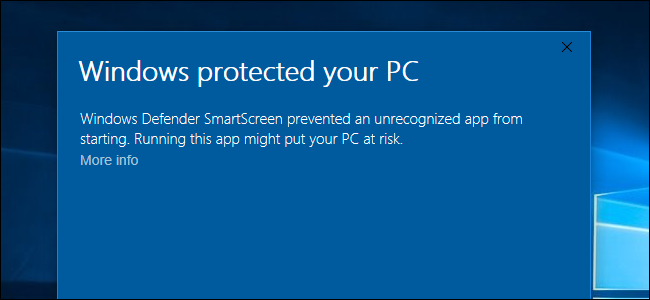
Are you a software developer who has put countless hours into building and releasing your software, only to find out that your software users are getting this warning when they install it?

Graphic:

It’s pretty frustrating, isn’t it? Fortunately, there’s a solution: Microsoft EV code signing.

This warning is Microsoft’s SmartScreen filter, which is designed to protect users from dangerous software files. It does a good job at that, but it tends to catch new software in the filter, too.

If your software is newly released or doesn’t have a lot of users, it’s more likely to get flagged by Microsoft SmartScreen. You didn’t do anything wrong, it’s just that Microsoft doesn’t know you yet. Here’s how to fix this issue with a Microsoft EV Code Signing Certificate.

How to Get a Microsoft EV Code Signing Certificate

A Microsoft EV code signing certificate isn’t issued directly by Microsoft. Rather, it’s issued by a certificate authority (CA) such as Sectigo that’s trusted by Microsoft. Here’s how to get an EV code signing certificate from Sectigo:

  1. Purchase the certificate. You can get a Sectigo EV code signing certificate on our website for just $289.67 per year (save 27% off retail).
  2. Complete the issuance process. After purchase, you’ll be guided through the process to submit your organization details for the certificate.
  3. Complete the validation process. Sectigo will verify your documents and work with you to complete the phone verification process.
  4. Get the certificate. You’ll receive the certificate, shipped to you on a USB drive. Putting the certificate and private key on a physical device is an additional layer of security that protects your certificate and reputation.

Save 27% on Microsoft EV Code Signing!

Get a Sectigo EV Code Signing Certificate for as a little as $289.67 per year.

Shop Now

Microsoft EV Code Signing FAQs:

Can I Use the Certificate for Signing Non-Microsoft Software?

Yes! Your certificate will be Microsoft-trusted for EV code signing, but it also works for other code signing needs, including Java code signing.

What is EV Code Signing?

EV stands for extended validation, and it means that the software publisher goes through extra vetting before getting the code signing certificate. It’s the ultimate customer assurance, which is why Microsoft trusts it and removes SmartScreen warnings for software signed by it.

I’m an Individual Developer. Can I Get a Microsoft EV Code Signing Certificate?

Unfortunately, no. EV code signing certificates can only be issued to organizations such as businesses.

How is EV Code Signing Different from Standard Code Signing?

Here are the main differences:

  • EV has a stricter validation process.
  • EV certificates come on a physical token.
  • EV is trusted by Microsoft SmartScreen.
  • EV cannot be issued to individuals.

Elliptic Curve Cryptography vs RSA Certificates: What’s the Difference?

Comparing ECC vs RSA SSL certificates — how to choose the best one for your website

If you’ve been working with SSL certificates for a while, you may be familiar with RSA SSL certificates — they’ve been the standard for many years now. But ECC certificates, or elliptic curve cryptography certificates, are a bit of a new player on the block. What’s the difference between ECC vs RSA? Which should you choose? Let’s compare RSA vs ECC certificates…

What is an RSA Certificate?

RSA is one of the earliest public key cryptosystems around, and it’s currently the backbone most SSL certificates operate on. Named after its creators (Ron Rivest, Adi Shamir, and Leonard Adleman), RSA is to this day a solid, secure encryption scheme used across the world by websites.

How it works: RSA is based on calculating very large prime numbers. With a large enough key, RSA is currently unbroken. Most SSL certificates use a 2048-bit private key for RSA certificates.

What is an ECC Certificate?

ECC certificates, based on elliptic curve cryptography, are the newer players on the block. They’ve been in use for around 15 years. They typically require a smaller key size to provide the same level of security — meaning that ECC is more efficient.

How it works: Rather than being based on prime numbers, ECC is based on calculating specific points along an elliptic curve.

ECC vs RSA Certificates: Which Is Best?

So, now for the million-dollar question: Should you use ECC certificates or RSA certificates?

Elliptic curve cryptography offers several benefits over RSA certificates:

  • Better security. While RSA is currently
    unbroken, researchers believe that ECC will withstand future threats better. So,
    using ECC may give you stronger security in the future.
  • Greater efficiency. Using large RSA keys
    can take a lot of computing power to encrypt and decrypt data, which can slow down
    your website. ECC, however, can scale up more efficiently without eating up
    computing resources.
  • Perfect forward secrecy. In simple
    language, this means that session keys (which are actually used to encrypt the
    data exchanged between the user and the server) remain secure even if the
    private key is compromised. This can be useful if a website is under
    surveillance by third parties.

The main drawback to ECC certificates vs RSA certificates is that ECC simply isn’t supported by some web server software. For example, cPanel (the most widely used web hosting control panel) doesn’t include support for ECC certificates. A bummer, right?

However, RSA certificates are still much more common than ECC certificates. Here’s why:

  • Incumbent advantage. Many people are
    accustomed to using RSA certificates — they’ve been doing so for years, so
    people may not see any reason to switch.
  • Strong security. As of yet, RSA remains
    unbroken, so RSA certificates are a very strong option to choose for your
    website.
  • Wide support. RSA certificates are
    supported by every popular browser, web server, hosting management platform,
    and other software out there. Whether you use cPanel, IIS, Apache, or any other
    software, RSA is supported.

ECC vs RSA: Conclusion

In short, if your website platform supports ECC, use it. On the other hand, if your system only supports RSA, an RSA certificate offers more than sufficient security and performance for any website!

Get an ECC or RSA SSL certificate starting at as little as $8.95 per year

Optional paragraph of text.

Shop Now